
Intune device scripts are bits of PowerShell that run on Intune managed devices. Much like Group Policy Objects in traditional Active Directory, these scripts can contain juicy information like secrets, privilege escalation paths, and more. The only problem is Microsoft doesn’t let you get them back out via the Intune portal, and I don’t always want to setup a whole Powershell environment. Let’s get them back out with just a web browser and curl.
TLDR? Pull Microsoft Graph cookies out of your browser and use those to manually construct API calls you need to access data that’s not available in the UI.
Background
When faced with an Intune managed organisation, reviewing the platform scripts pushed to various devices is a great idea. What’s in those scripts? Who are they being pushed to? Can we use anything in there for privilege escalation? All valid questions.
The fastest way to go about this is to review the Intune config and scripts directly, and build the attack path from there. The issue is that the Intune console does not provide a mechanism to get the actual script content out!
Here’s what we’re looking at after browsing to Devices -> Scripts and Remediations -> Platform Scripts in the Intune admin console:
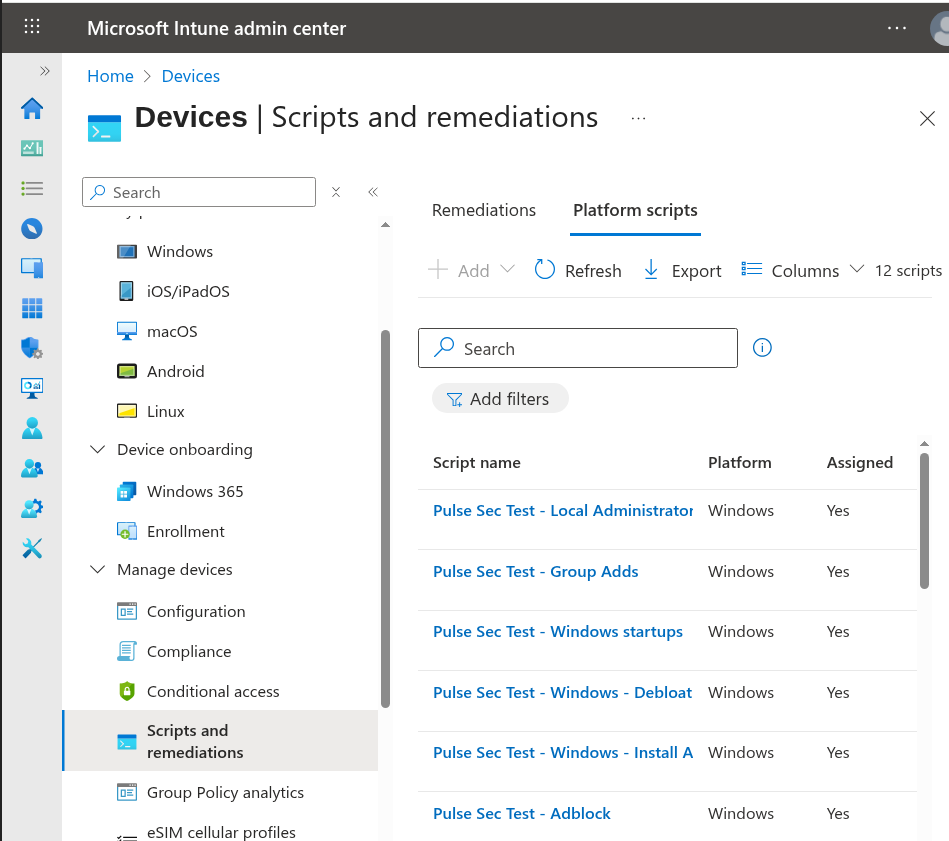
Figure 1: Platform scripts view in Intune.
“MsGraph scope” this and “Application ID” that…
There are some existing tools that I dug up that do this work, which unfortunately used the MsGraph module, instead of the new Microsoft.Graph module. Porting the tooling over to Microsoft.Graph wasn’t much of an option, since this popped a nice window asking for administrator approval to grant access.
Maybe you can use the graph explorer and add the correct Scope? Nope! That triggers admin approval too:
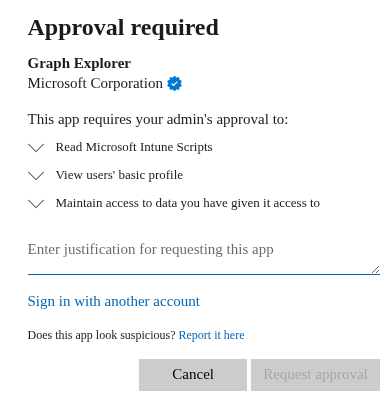
Figure 2: Approval for DeviceManagementScripts.Read Scope
Gross.
Enter our hero - Curl
I don’t particularly want to request permission. My user was a Global Administrator already and requesting anything from anyone just feels silly… I didn’t particularly want to register a new AppID either.
The solution was to open up devtools, refresh the Intune admin console to get a request for MsGraph in the Network tab, and then use copy-as-curl:
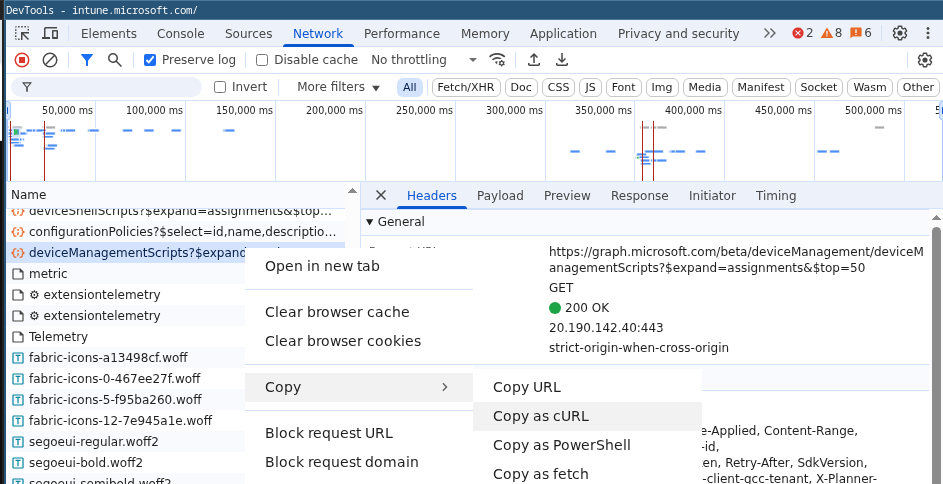
Figure 3: Intune in Chromium Dev Tools
We can then call this from the command line. Note, when I say ‘command line’ I mean Bash. I daily-drive Linux, but the following should work in any OS with Bash and Curl. Protip alias curl='curl -x 127.0.0.1:8080' makes sure all of your curl invocations go via your local intercepting proxy for logging:
curl 'https://graph.microsoft.com/beta/deviceManagement/deviceManagementScripts?$expand=assignments&$top=50'   -H 'accept: */*'   -H 'accept-language: en'   -H 'authorization: Bearer eyJ0eX...yoink...uA'   -H 'client-request-id: 5cf88f79-d566-4560-b089-7e8d1f9c406c'   -H 'origin: https://sandbox-1.reactblade.portal.azure.net'   -H 'priority: u=1, i'   -H 'referer: https://sandbox-1.reactblade.portal.azure.net/'   -H 'sec-ch-ua: "Chromium";v="139", "Not;A=Brand";v="99"'   -H 'sec-ch-ua-mobile: ?0'   -H 'sec-ch-ua-platform: "Linux"'   -H 'sec-fetch-dest: empty'   -H 'sec-fetch-mode: cors'   -H 'sec-fetch-site: cross-site'   -H 'user-agent: Mozilla/5.0 (X11; Linux x86_64) AppleWebKit/537.36 (KHTML, like Gecko) Chrome/139.0.0.0 Safari/537.36'   -H 'x-content-type-options: nosniff'   -H 'x-ms-client-request-id: 5cf88f79-d566-4560-b089-7e8d1f9c406c'   -H 'x-ms-command-name: getDeviceManagementScripts' > deviceManagementScripts.json

  % Total    % Received % Xferd  Average Speed   Time    Time     Time  Current
                                 Dload  Upload   Total   Spent    Left  Speed
100 34361    0 34361    0     0  17758      0 --:--:--  0:00:01 --:--:-- 17757
You likely don’t need all the headers above, but I’m being lazy here and not minimising the browser’s copy-from-curl command. We can now inspect this JSON content with jq:
$ jq . < deviceManagementScripts.json

{
  "@odata.context": "https://graph.microsoft.com/beta/$metadata#deviceManagement/deviceManagementScripts(assignments())",
  "value": [
    {
      "enforceSignatureCheck": false,
      "runAs32Bit": false,
      "id": "706815f8-79b1-4c12-bbb5-b31202f54c1a",
      "displayName": "Pulse Sec Test - Local Administrator",
      "description": "Handle local administrator configuration",
      "scriptContent": null,
      "createdDateTime": "2025-06-01T12:42:10.528573Z",
      "lastModifiedDateTime": "2025-06-01T12:42:10.528573Z",
      "runAsAccount": "system",
      "fileName": "locadmin.ps1",
      "roleScopeTagIds": [
...yoink...
The ‘id’ parameter above is what I’m after. We should also count the scripts to make sure it matches the number in the UI - good to watch out for pagination, we don’t want to miss data!
$ jq .value[].id < deviceManagementScripts.json | wc -l

12
Next, we can try pulling the script data by tweaking the URL:
$ curl "https://graph.microsoft.com/beta/deviceManagement/deviceManagementScripts/706815f8-79b1-4c12-bbb5-b31202f54c1a"   -H 'accept: */*'   -H 'accept-language: en'   -H 'authorization: Bearer ey...yoink...6c'   -H 'origin: https://sandbox-1.reactblade.portal.azure.net'   -H 'priority: u=1, i'   -H 'referer: https://sandbox-1.reactblade.portal.azure.net/'   -H 'sec-ch-ua: "Chromium";v="139", "Not;A=Brand";v="99"'   -H 'sec-ch-ua-mobile: ?0'   -H 'sec-ch-ua-platform: "Linux"'   -H 'sec-fetch-dest: empty'   -H 'sec-fetch-mode: cors'   -H 'sec-fetch-site: cross-site'   -H 'user-agent: Mozilla/5.0 (X11; Linux x86_64) AppleWebKit/537.36 (KHTML, like Gecko) Chrome/139.0.0.0 Safari/537.36'   -H 'x-content-type-options: nosniff'   -H 'x-ms-client-request-id: 5cf88f79-d566-4560-b089-7e8d1f9c406c'   -H 'x-ms-command-name: getDeviceManagementScripts' | jq .

{
  "@odata.context": "https://graph.microsoft.com/beta/$metadata#deviceManagement/deviceManagementScripts/$entity",
  "enforceSignatureCheck": false,
  "runAs32Bit": false,
  "id": "706815f8-79b1-4c12-bbb5-b31202f54c1a",
  "displayName": "Pulse Sec Test - Local Administrator",
  "description": "Handle local administrator configuration",
  "scriptContent": "bmV0IHVzZXIgYWRkIHNvbWUtYWRtaW4gUGFzc3cwcmQNCm5ldCBsb2NhbGdyb3VwIGFkbWluaXN0cmF0b3JzIC9hZGQgc29tZS1hZG1pbg0K",
  "createdDateTime": "2025-06-01T12:42:10.528573Z",
  "lastModifiedDateTime": "2025-06-01T12:42:10.528573Z",
  "runAsAccount": "system",
  "fileName": "locadmin.ps1",
  "roleScopeTagIds": [
    "2"
  ]
}
And there’s our script content decoded from the Base64 blob. Marvellous.
$ echo "bmV0IHVzZXIgYWRkIHNvbWUtYWRtaW4gUGFzc3cwcmQNCm5ldCBsb2NhbGdyb3VwIGFkbWluaXN0cmF0b3JzIC9hZGQgc29tZS1hZG1pbg0K" | base64 -d

net user add some-admin Passw0rd
net localgroup administrators /add some-admin
This script that adds a local admin user with a weak password is certainly a problem. But I don’t want to find one problem, I wish to find all the problems! Pulling all Intune scripts is now just a case of a little for loop and our original json file:
$ jq -r .value[].id < deviceManagementScripts.json  | while read i; do curl "https://graph.microsoft.com/beta/deviceManagement/deviceManagementScripts/$i"   -H 'accept: */*'   -H 'accept-language: en'   -H 'authorization: Bearer eyJ...yoink...2uA'   -H 'client-request-id: 5cf88f79-d566-4560-b089-7e8d1f9c406c'   -H 'origin: https://sandbox-1.reactblade.portal.azure.net'   -H 'priority: u=1, i'   -H 'referer: https://sandbox-1.reactblade.portal.azure.net/'   -H 'sec-ch-ua: "Chromium";v="139", "Not;A=Brand";v="99"'   -H 'sec-ch-ua-mobile: ?0'   -H 'sec-ch-ua-platform: "Linux"'   -H 'sec-fetch-dest: empty'   -H 'sec-fetch-mode: cors'   -H 'sec-fetch-site: cross-site'   -H 'user-agent: Mozilla/5.0 (X11; Linux x86_64) AppleWebKit/537.36 (KHTML, like Gecko) Chrome/139.0.0.0 Safari/537.36'   -H 'x-content-type-options: nosniff'   -H 'x-ms-client-request-id: 5cf88f79-d566-4560-b089-7e8d1f9c406c'   -H 'x-ms-command-name: getDeviceManagementScripts' > scripts/$i.json; done

  % Total    % Received % Xferd  Average Speed   Time    Time     Time  Current
                                 Dload  Upload   Total   Spent    Left  Speed
100  631     0  631     0     0    983      0 --:--:--  0:00:01 --:--:--   983
  % Total    % Received % Xferd  Average Speed   Time    Time     Time  Current
                                 Dload  Upload   Total   Spent    Left  Speed
100  4372    0  4372    0     0   4316      0 --:--:--  0:00:01 --:--:--  4320
  % Total    % Received % Xferd  Average Speed   Time    Time     Time  Current
                                 Dload  Upload   Total   Spent    Left  Speed
100   627    0   627    0     0   1739      0 --:--:-- --:--:-- --:--:--  1736
  % Total    % Received % Xferd  Average Speed   Time    Time     Time  Current
                                 Dload  Upload   Total   Spent    Left  Speed
100   559    0   559    0     0   1558      0 --:--:-- --:--:-- --:--:--  1561
  % Total    % Received % Xferd  Average Speed   Time    Time     Time  Current
                                 Dload  Upload   Total   Spent    Left  Speed
100   822    0   822    0     0   1690      0 --:--:-- --:--:-- --:--:--  1691
  % Total    % Received % Xferd  Average Speed   Time    Time     Time  Current
                                 Dload  Upload   Total   Spent    Left  Speed
100  9590    0  9590    0     0  26875      0 --:--:-- --:--:-- --:--:-- 26862
  % Total    % Received % Xferd  Average Speed   Time    Time     Time  Current
                                 Dload  Upload   Total   Spent    Left  Speed
100  4251    0  4251    0     0   9541      0 --:--:-- --:--:-- --:--:--  9552
  % Total    % Received % Xferd  Average Speed   Time    Time     Time  Current
                                 Dload  Upload   Total   Spent    Left  Speed
100  1455    0  1455    0     0   4050      0 --:--:-- --:--:-- --:--:--  4041
  % Total    % Received % Xferd  Average Speed   Time    Time     Time  Current
                                 Dload  Upload   Total   Spent    Left  Speed
100  1635    0  1635    0     0   4054      0 --:--:-- --:--:-- --:--:--  4057
  % Total    % Received % Xferd  Average Speed   Time    Time     Time  Current
                                 Dload  Upload   Total   Spent    Left  Speed
100   776    0   776    0     0   1792      0 --:--:-- --:--:-- --:--:--  1796
  % Total    % Received % Xferd  Average Speed   Time    Time     Time  Current
                                 Dload  Upload   Total   Spent    Left  Speed
100 17787    0 17787    0     0  49197      0 --:--:-- --:--:-- --:--:-- 49135
  % Total    % Received % Xferd  Average Speed   Time    Time     Time  Current
                                 Dload  Upload   Total   Spent    Left  Speed
100 18500    0 18500    0     0  50367      0 --:--:-- --:--:-- --:--:-- 50408
Each script can now be analysed one-by-one, and any potential issues uncovered. For example, if a script runs as SYSTEM and executes a command from a user controllable path, that’s a privilege escalation path right there.
The next step is to identify which users/groups are affected by the vulnerable scripts and determine the exploitability of the issue.
If you only need to pull one script’s content, you dont even need the curl and while loop steps. Simply click on the script in the Intune console, and pull the response out of the devtools when the browser requests that specific script ID from MS Graph.
Summary
Opening up DevTools and grabbing an API request instead of wrestling authentication logic and/or various PowerShell scripts has saved me a bunch of headaches. We’ve looked at platform scripts in Intune here, the same process applies to remediation script packages. Open up those browser dev-tools and take a look for yourself! This isn’t an Intune specific technique either. I’ve used the same technique in other unrelated products - like scraping user permission sets out of Octopus CI.
We figured out these review techniques as part of our Defense Review service. Occasionally putting the AppSec hat on and busting out some web hacking tricks makes navigating these cloud services a bunch easier.
Bonus Round - JWTs for Azurehound?
Would you like to get a JWT to run Azurehound but don’t want to wrangle MFA or the various PowerShell to get a refresh token? Do you also daily drive Linux/MacOS and resent having to spin up Windows VMs just to use PowerShell (proper real PowerShell, miss me with that PowerShell Linux jive)?
Open up https://entra.microsoft.com, open dev tools, find a msgraph API call, copy the Authorization header data out and feed it directly into Azurehound! Assuming of course you’re using a version of Azurehound that supports token auth.